

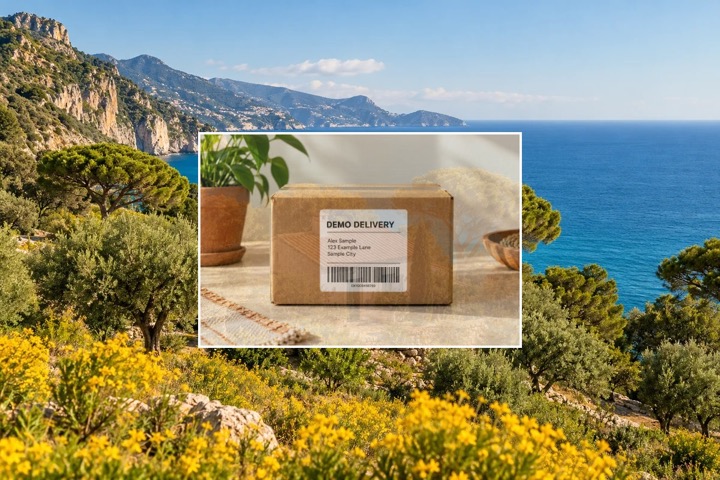
How to overlay images
- Choose the base image. It sets the shape and dimensions of the canvas.
- Add one or more overlays. Drag each layer into place and resize it with its corner handle or the size slider.
- Adjust opacity to show the base through a layer. Set a border width and color if you want a frame.
- Choose PNG or JPG and download the combined image.
What can you make with image overlays?
Put a transparent logo in the corner of a product photo, frame a second picture for a thumbnail, or lower the opacity of a texture to blend it into a background.
See five ways to use an image overlayWhich format should you download?
Choose PNG to keep any transparency in the combined image. JPG fills transparent areas with white. Both formats use the base image’s dimensions after resizing. Images longer than 4,096 pixels on either side are scaled down to fit.
Your browser opens, edits, and exports the images locally.